

When I first tried to make my Copilot Studio bot answer questions about a YouTube channel, my first thought was simple: just add the channel URL as a public website knowledge source.
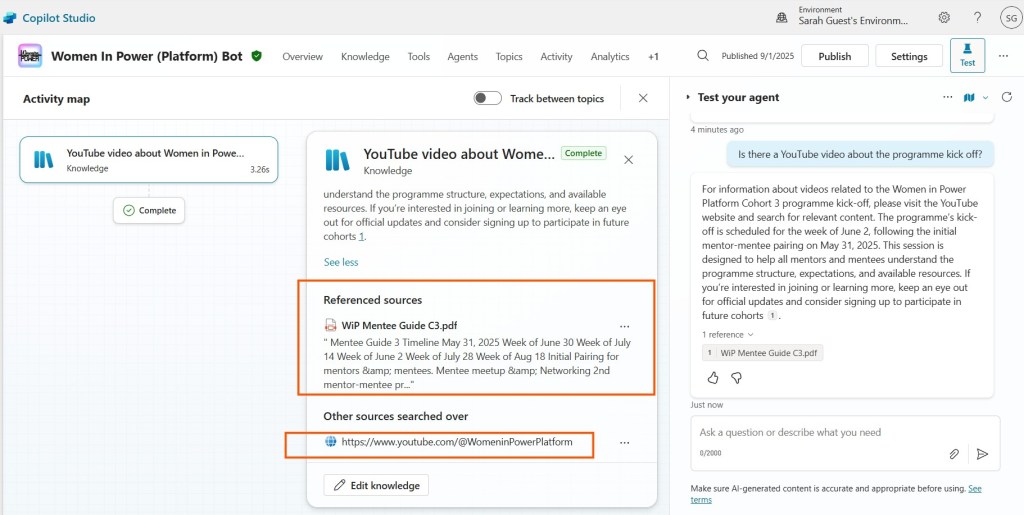
Unfortunately, that didn’t work as I hoped. The bot couldn’t list the channel’s videos or find a specific one by keyword in the title. YouTube’s pages are highly dynamic and aren’t crawled well by Copilot’s website knowledge option.
That’s when I followed Damien’s excellent video guide where he built a custom connector for a Ticket Master Bot. Check out his cool video here and why not create your own version. https://youtu.be/ZcUUv39dcig?si=n-fuypQx5vWLrMXv
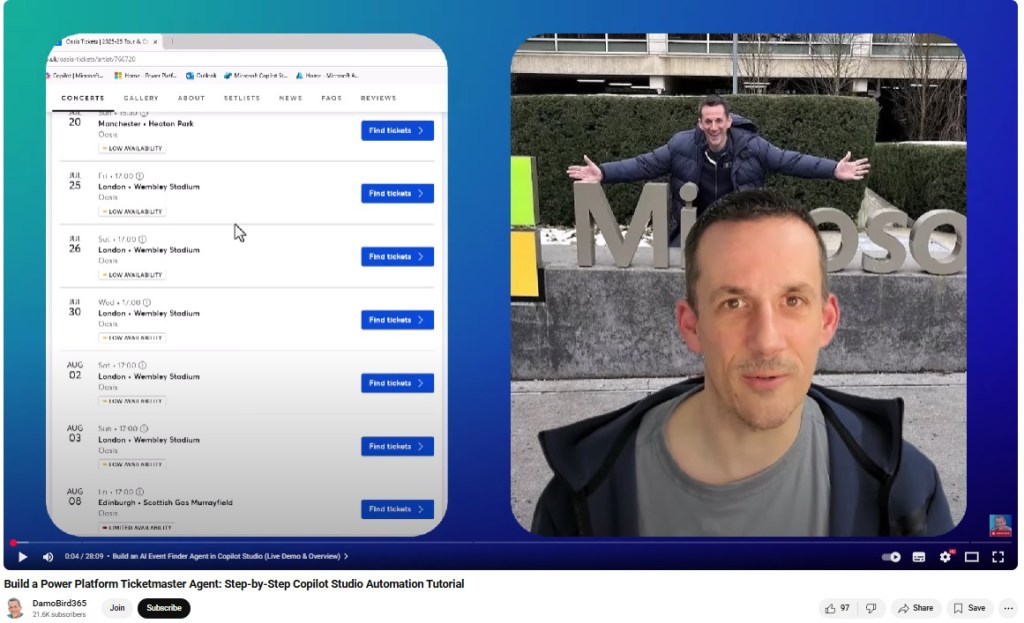
Here’s how I setup and discovered the better route: Create a Custom Connector for the YouTube Data API
Step 1: Create a Google Cloud project & credentials
Before Copilot can talk to YouTube, you need API credentials.
- Head to Google Cloud Console.
- Create (or select) a project.
- Go to APIs & Services → Library, search for YouTube Data API v3, and enable it.
- Under APIs & Services → Credentials, create an
- API key – easiest route, works for public data like video titles, descriptions, stats.

Step 2: Build the Custom Connector
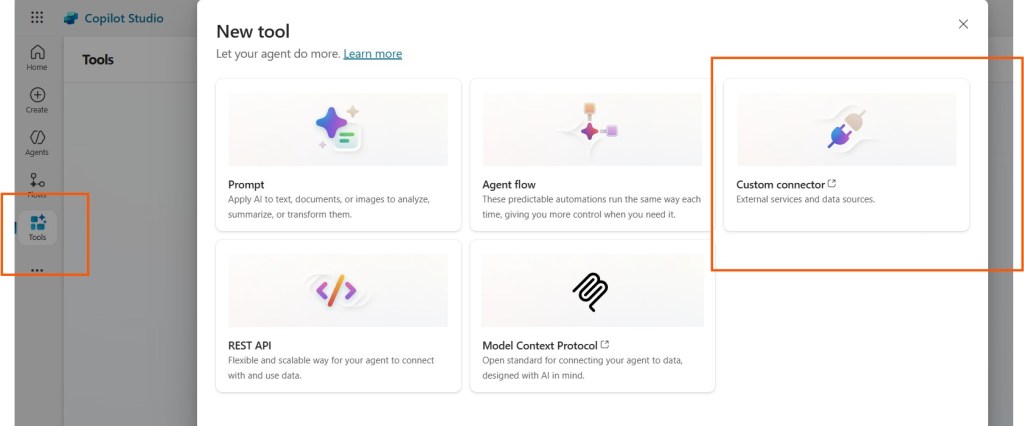
Now, back in the Power Platform (via Power Automate or the Custom connector option in Copilot Studio), create your connector.
- Host:
www.googleapis.com - Base URL:
/youtube/v3 - Security: choose API Key
Step 3: Get the Channel ID
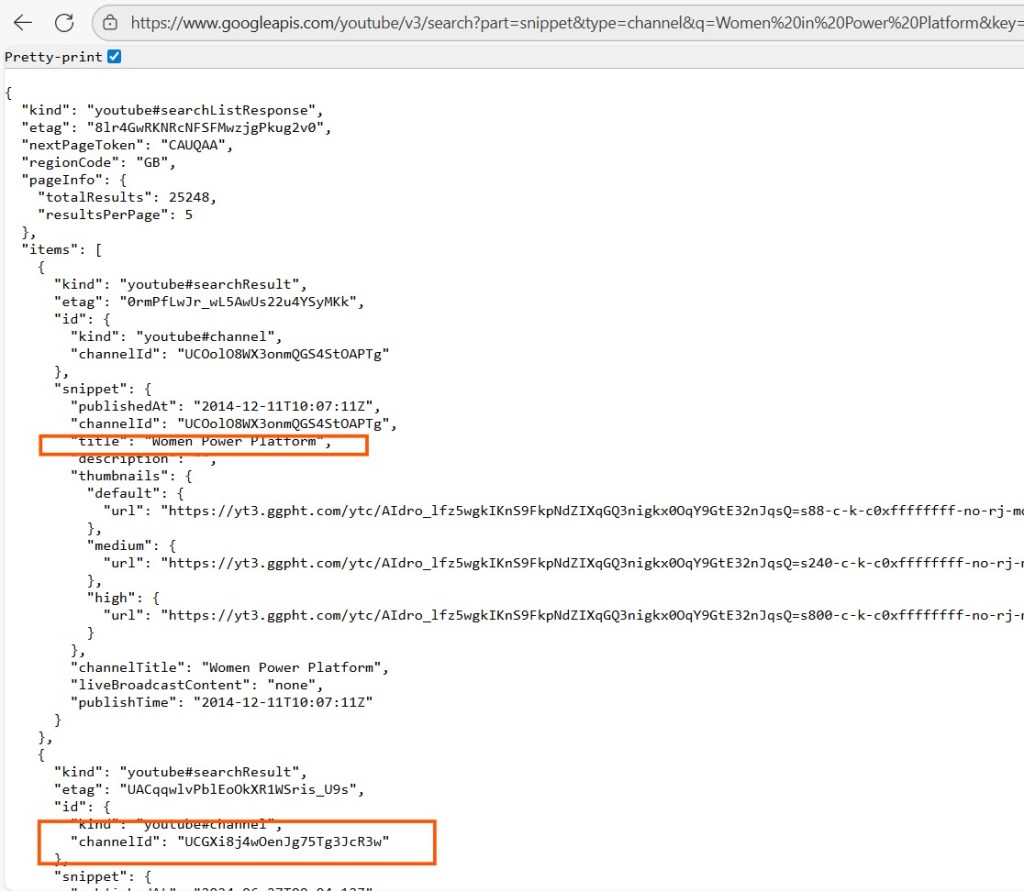
For my bot, I only want results from the Women In Power (Platform) YouTube channel so I needed to find out the channel ID.
I used the search.list endpoint in your browser, adding my API Key at the end.
Step 4: Add the key operations
I added just two core endpoints but hoping to add more in the future as I continue to learn.
- channels.list – to get a channel’s details, including its Uploads playlist ID.
- playlistItems.list – to list the videos in that playlist.
These also look cool but I will try these at a later date.
- videos.list – to pull richer metadata (title, description, duration, stats).
- search.list – to find videos by keyword in the title/description.
To get details of the Channel I used – Operation ID: GetChannels
I imported from a sample with
Verb: GET
– adding in my channel ID and API Key and then pasted my JSON output from my browser as the default response.

Step 5: Test your custom connector
With the connector built, I tested that I could get data back.
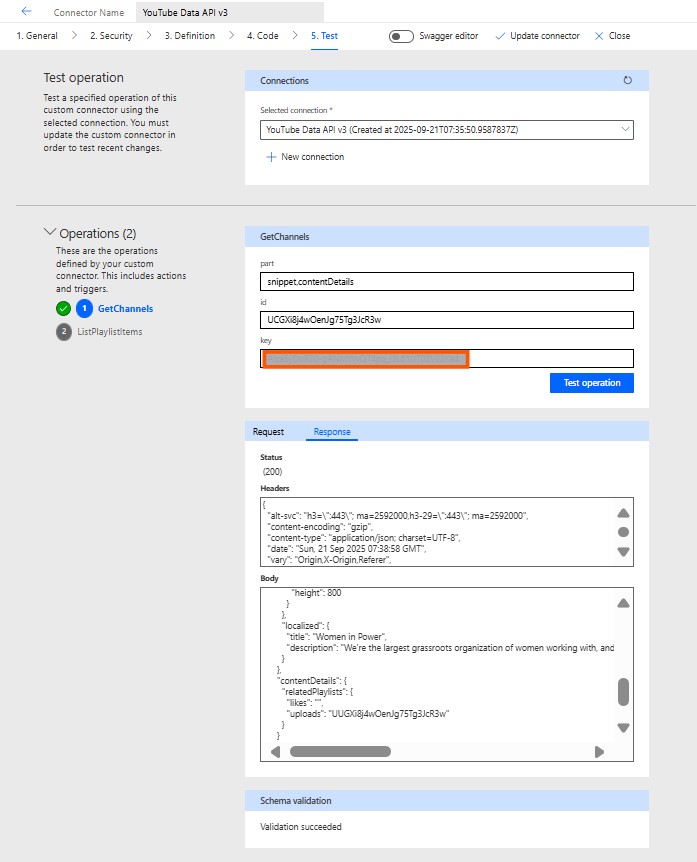
Step 5: Wire into Copilot Studio
Once the connector worked, I returned to Copilot Studio. Now Copilot Studio is always updating and previously I had added this new connector under ‘Actions’ but now I think it has moved to ‘Tools’.
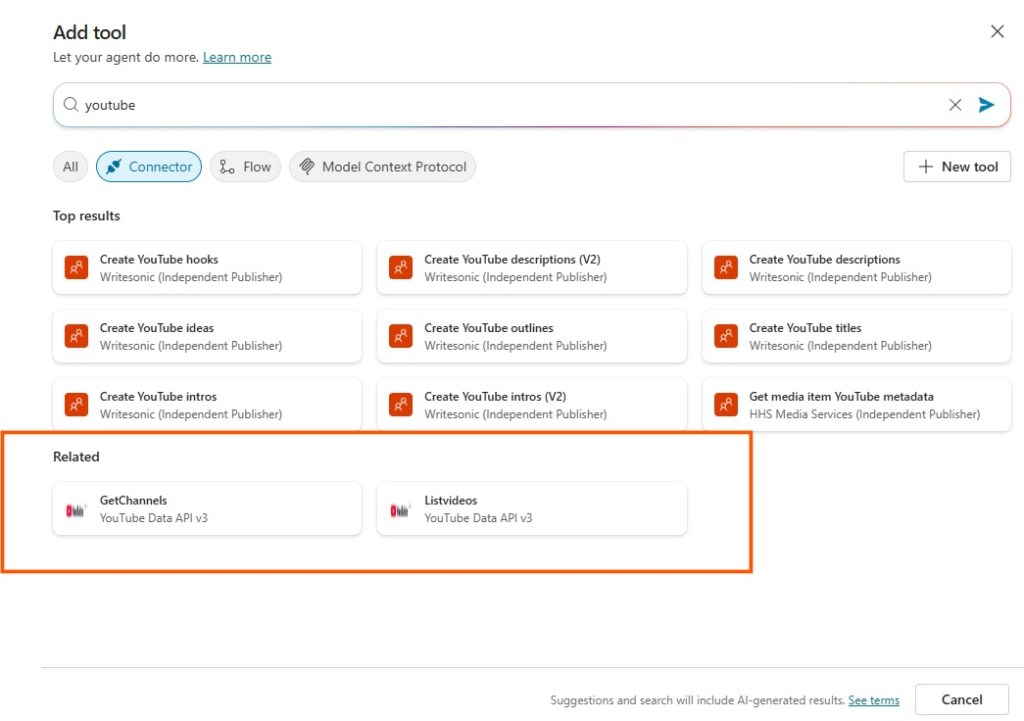
I configured my custom connector to use the makers credentials, allowed the agent to use this tool at any time and added custom inputs for the API key and channel ID’s so that this tool would only bring back information from the Women in Power Platform YouTube Channel.
And I was really impressed with the results giving me details of the videos and also hyperlinks too.
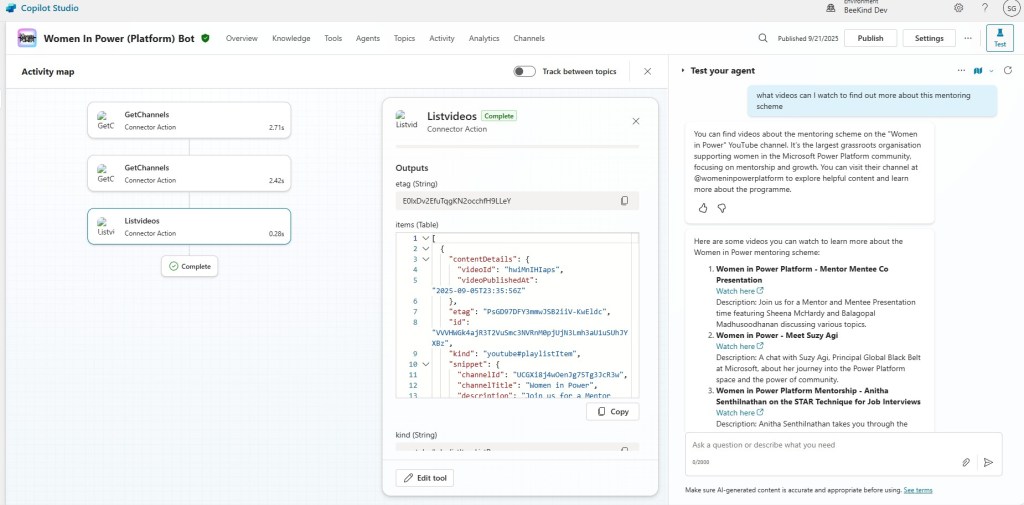
Wrap-up
Adding YouTube as a public site source didn’t give me the honey I was looking for. 🐝 By building a Custom Connector with the YouTube Data API, I can now list videos and feed them straight into my Copilot bot.
My brain really gets buzzing when I’m hands-on and actually building things. Even though this setup might seem like a small step, it’s helped me bee-lieve I can make custom connectors work hand-in-hand with a Copilot Studio Agent.
I hope you enjoyed this little flight through my process. Next week I’ll bee back with another blog showing what I built next in Copilot Studio — so stay tuned, it’s bound to be un-bee-lievable! ✨
🐝 That’s my journey so far! If you’ve tried this yourself, let me know what worked for you — or where you got stuck. Let’s keep the hive mind buzzing together.

Leave a comment