

Why I’m writing this mini-series
Over the past three months I’ve been paired with the brilliant Damien Bird through the Women in Power (Platform) mentoring scheme. We’ve been building Copilot Studio agents and sharing resources on new features and changes across the Power Platform. I’m turning those notes into short, beginner-friendly posts so I can refer back—and so anyone starting their Copilot Studio journey has a clear, no-fluff path to follow. Expect bite-size guides, screenshots, and quick checklists. I’ll also link to Damien’s videos and include short quizzes to test yourself.
Damien has a great intro video here which gives more details and is really easy to follow https://damobird365.com/learn-automation-agents-ai-in-low-code/
As a learning task I decided to build a simple agent for a person to find out more information about the Women in Power Platform – Cohort 3 mentoring program. I add a document as a knowledge source, set the agent’s instructions, and learn about the orchestration toggle (on vs off). I’ll show you example questions and how the bot chooses between topics and knowledge.
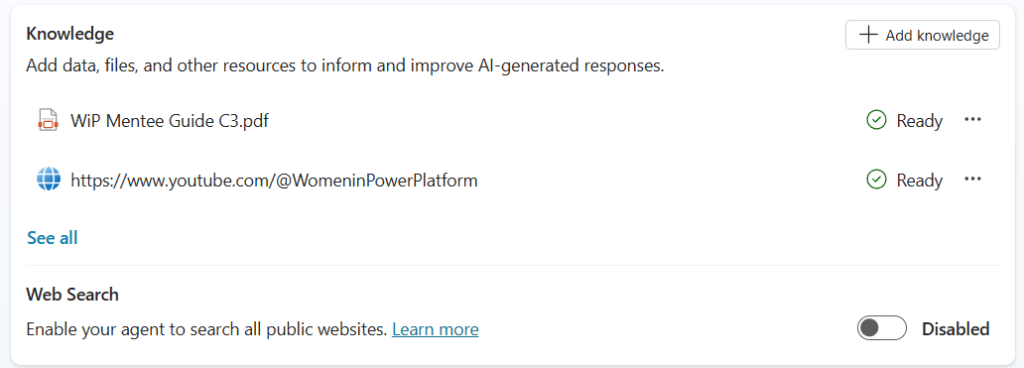
1) Add a document as a knowledge source
- Open your Copilot Studio agent → Knowledge → Add knowledge source.
- Choose File and upload your PDF/DOCX (e.g. “Cohort 3 overview”).
- You could add a public web page but when I was building I decided to try to add the WiPP Youtube link. Do you think this will work – let’s see!
- I turned off Web search as I only wanted answers from the specified knowledge sources or topics.
- Publish your agent so changes take effect.
2) Configure the agent’s instructions
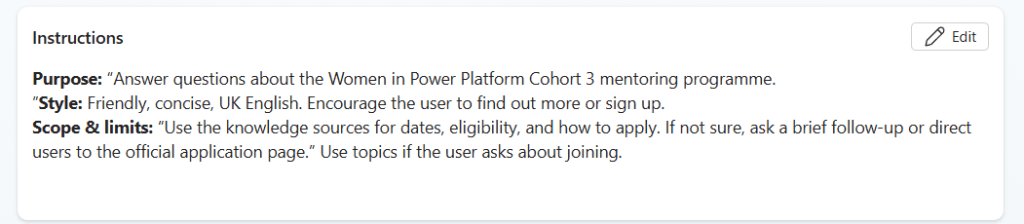
In Settings → Instructions, keep it short and specific:
You can add details here about how you want the agent to respond. I had good fun playing with this to see how the style and tone changed.
3) Orchestration: what it does
- Enabled: The agent intelligently routes each question to the best option — knowledge sources, your authored topics, or actions — and blends results for the most relevant answer.
- Disabled: The agent won’t use generative answers from knowledge sources. It will rely on your authored topics and their trigger phrases (plus any actions you explicitly call).
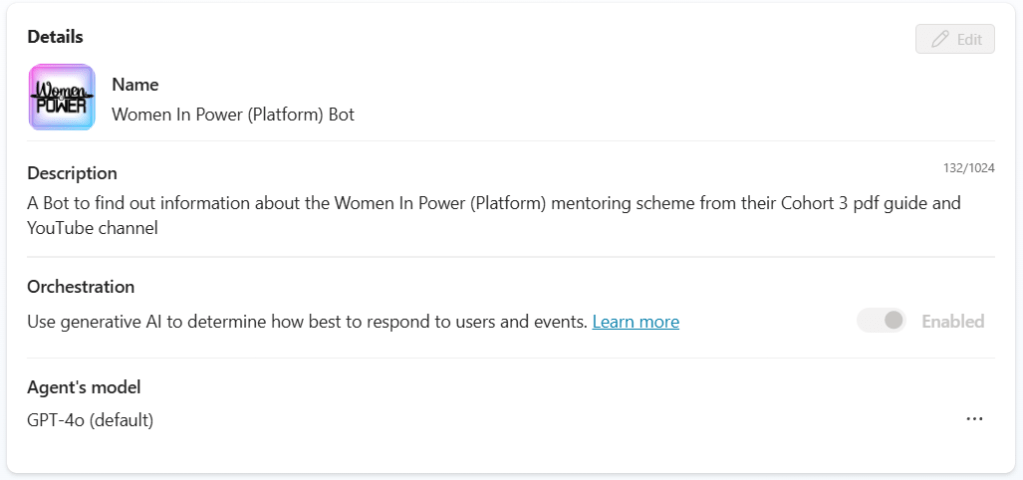
Here is the Microsoft Learn link which give more details Orchestrate agent behavior with generative AI – Microsoft Copilot Studio | Microsoft Learn
4) Example topics in this agent
- Topic 1 – “Become a mentor” (covers eligibility, commitment, how to register).
- Topic 2 – “Apply to be a mentee” (covers criteria, timelines, link to apply).
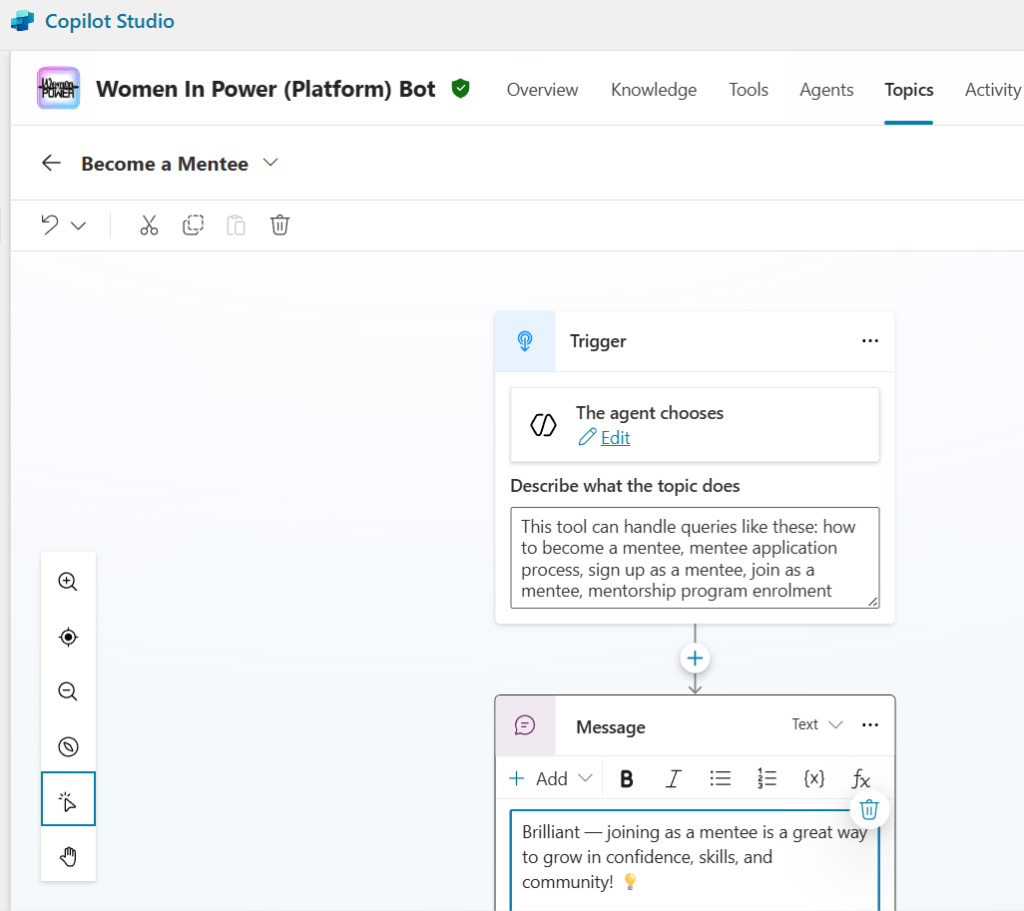
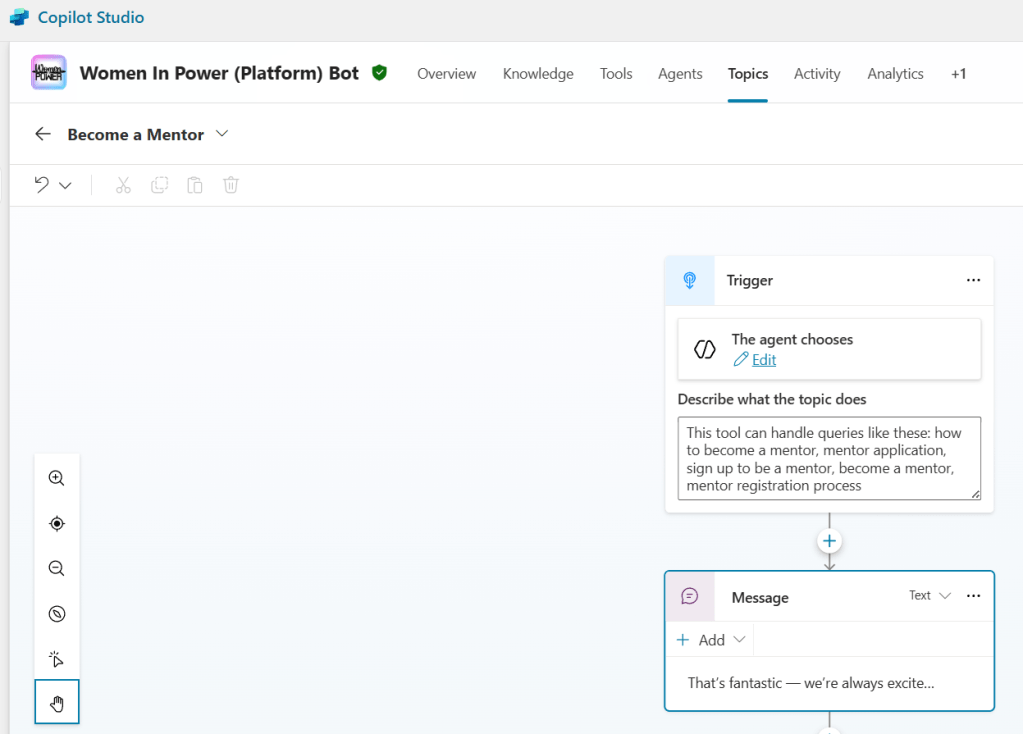
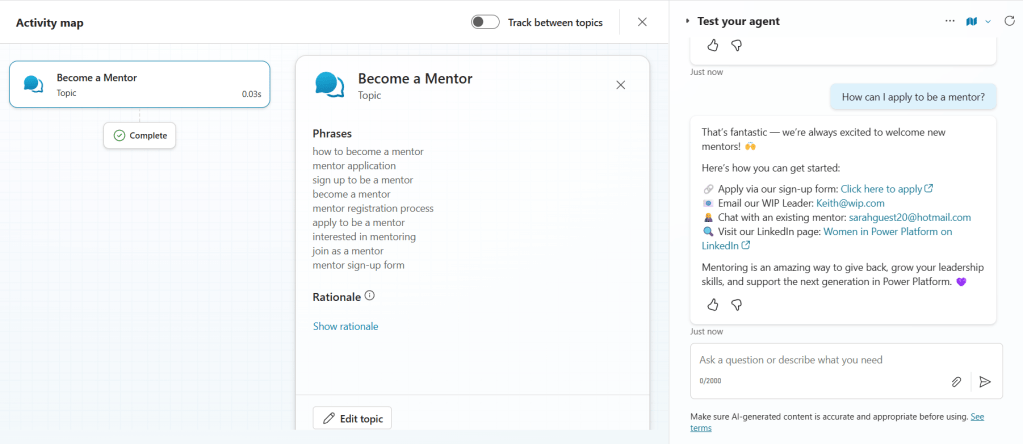
5) What the bot actually uses (topics vs knowledge)
Here are three examples of real questions and what the bot used to answer them:
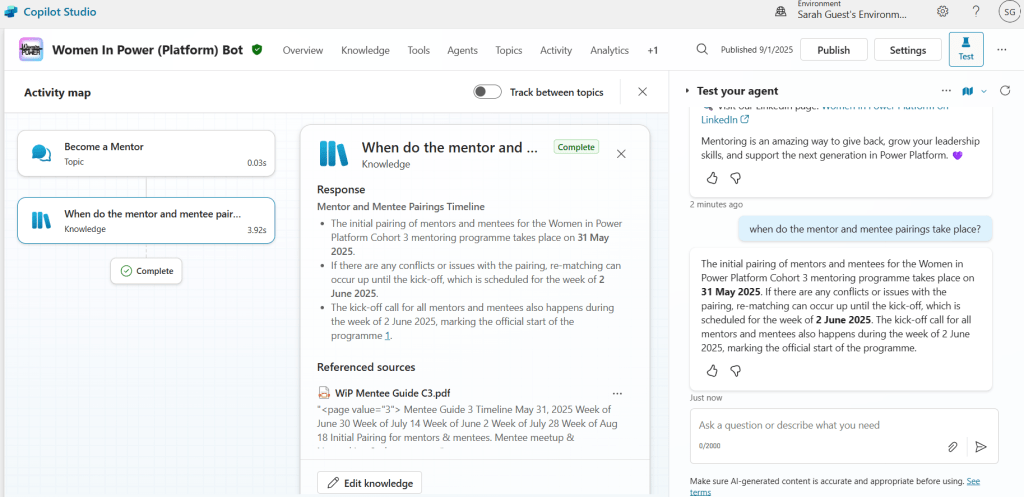
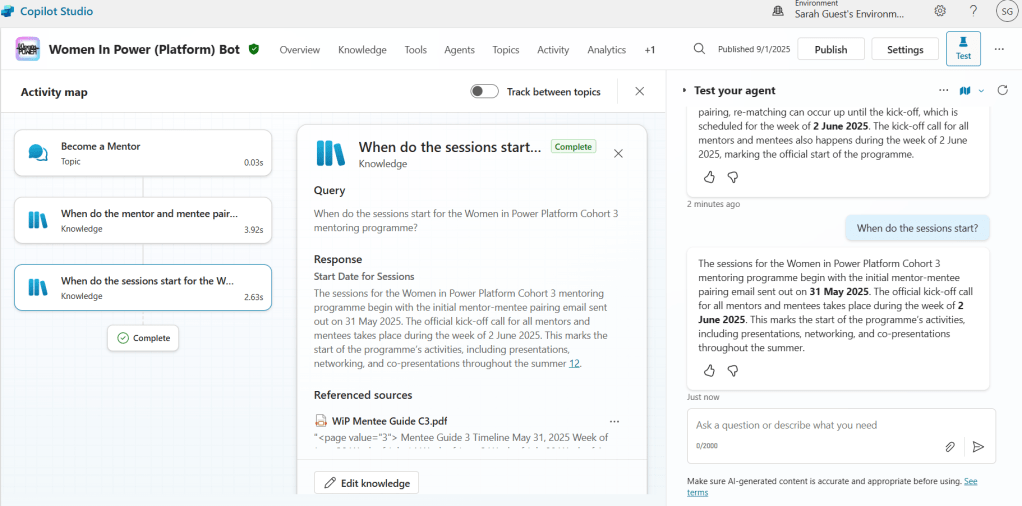
Heads-up: YouTube as a knowledge source
I added a YouTube link as a knowledge source. If you ask about the videos or the channel URL directly, the bot can’t reliably use it to answer. In the next post, I’ll be exploring this further.
Did you enjoy this post? Please add a comment below — your thoughts help the hive grow. 🐝


Leave a Reply